
Two Weapon Assets in a Spine Package, but Only One on Screen?
Decide whether the requirement is replacing a weapon variant or displaying two weapons together, then inspect the actual attachment state.
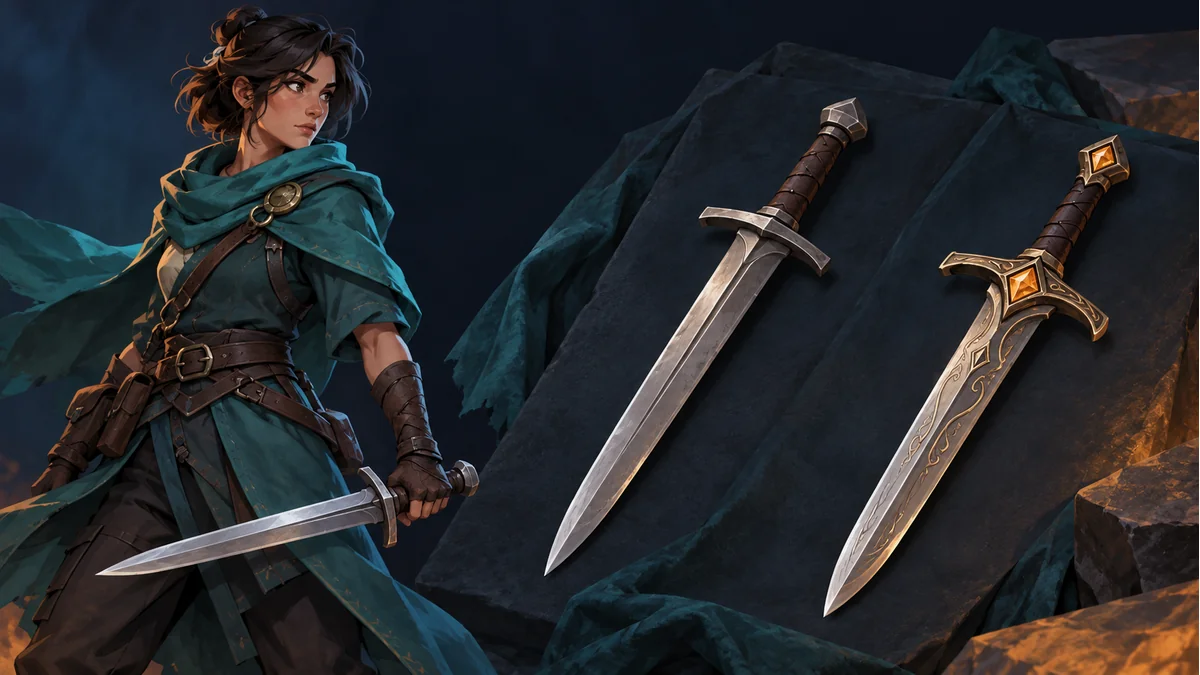
The AI-generated cover shows a character and two weapon designs. It is not a dual-wield setup, a slot tree, or a simultaneous-display test.
One collaborator receives two sword images and expects both weapons on screen. Another intended only to replace the old sword with a new design. Clarify replacement versus simultaneous equipment before generating more assets.
Available, selected, and visible are separate states
A file in the package establishes that an asset exists. The attachment selected by the current animation or runtime state is a separate question. Whether that attachment is visible can also depend on transparency, occlusion, and loading results. Two PNG files are not evidence that two weapons should appear together.
Use three columns in a note: available assets, current selection, and observed result. Mark unknown states as unresolved rather than filling them in from the number of files.
One slot does not display all its attachments together
The official Spine Slots documentation explains that a slot can display one attachment or none at a time, and the visible attachment can be keyed in animation. Storing several alternatives in one slot does not make all of them draw simultaneously.
Suppose an actual project uses sword_a and sword_b as alternatives in a single weapon slot. Changing the selection can replace the displayed weapon; that alone does not implement dual wielding. These names are illustrative, not required filenames or a claim about every Tooliva template.
Check which variant was retained in the workbench
In Spine Workbench, confirm the current resource, weapon variant, and animation using the public guide. It demonstrates adding a variant, naming and accepting a result, and returning to animation preview. Keeping alternatives is not a promise of automatically creating new attachment points.
If the requirement is a weapon in each hand, first establish whether the template, skeleton project, and target application support that structure. Do not treat variant replacement as a dual-wield feature. Any required project changes need an explicit design; this article does not recommend adding unverified slots or runtime code.
For a disappearing part, record state before declaring a missing image
- Object: actual resource, variant, and known attachment names, kept distinct.
- Conditions: animation, stage, and current selection.
- Package evidence: the corresponding asset and references from this export batch.
- Visual evidence: absent, covered, or replaced by another object.
Compare the template, resource, and target project under matching animation conditions. The project owner can then inspect the actual attachment selection, animation state, or rendering configuration. An empty slot is a possible branch to check, not a confirmed cause for a particular disappearance.
Accept the result against the original requirement
For replacement, inspect the selected weapon, grip, and planned actions. For simultaneous equipment, first confirm a supported structure, then verify both objects and their motion. Having downloaded two files is not a substitute for either acceptance test.
If the object is covered by the torso, continue with position versus draw order. For naming, see resource, skin, and variant names. Keep inventory, selection, and rendering as distinct observations.
Ready to try "Two Weapon Assets in a Spine Package, but Only One on Screen?"?
Use our online tools to apply this tutorial to your indie game project right away.