
Resource, Skin, and Weapon Variant Names in Spine Workbench
Avoid identifying assets by thumbnail order or similar filenames. Record which resource, weapon appearance, and exported skin each name actually refers to.
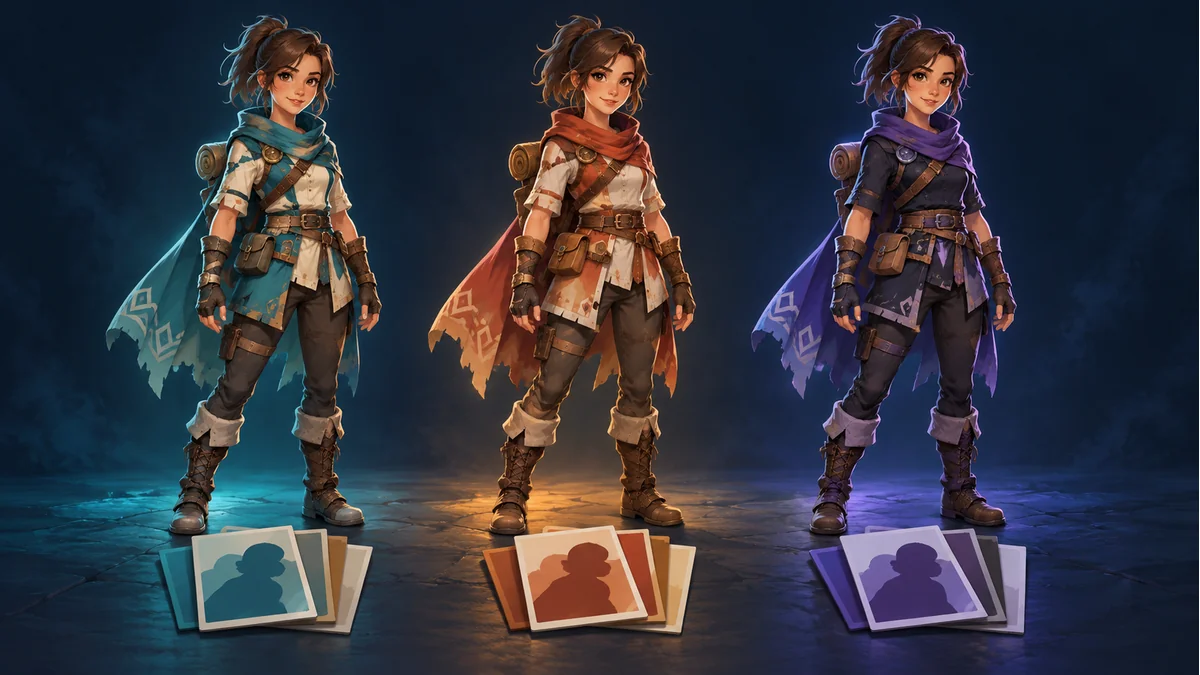
The cover reuses an AI-generated multi-appearance character concept. It is not a naming interface or proof that these characters were exported as matching skins.
“Use the teal one” can refer to a resource in the workbench, a particular weapon appearance, or a skin name entered during export. Similar-looking names do not establish that they identify the same object. State what is being named before handing off the package.
This explanation follows resource creation, new weapon variants, and multi-skin export in the Spine Workbench guide. The mapping note below is a manual practice, not a new database field or automatic feature.
Resource name: locate the working character resource
The name entered during resource creation helps identify the object during later work. Include the template and actual appearance in your project notes rather than recording only “Character One.” Similar color descriptions can occur under different templates; name similarity does not establish export compatibility.
A note might identify “the teal appearance resource under Template A” alongside its actual resource name. That is a team-facing description, not a required software naming pattern.
Weapon variant name: identify an appearance you chose to keep
The documented weapon-variant workflow reviews candidates, makes any needed adjustments, and names and accepts a result. The name distinguishes the weapon appearance being retained. Do not assume it becomes the whole character’s exported skin name or a fixed PNG filename.
A resource with a weapon variant called “Plain Copper Guard” does not, by that fact alone, establish a full-character skin with the same name in the target project. See the weapon variant acceptance checklist for the decision to keep a candidate. A clear name does not replace a motion check.
Exported skin name: preserve what you actually entered
In the documented multi-skin export workflow, select completed resources from the same template and enter a skin name for each. Record the actual values entered for this export, then compare them with the output. Thumbnail position is not a reliable explanation of which name the receiving project should use.
A resource-list name may suit the artist’s working process, while the handoff note records the skin name used in that export. Whether they match depends on your actual input and result, not on an assumed platform naming rule.
Connect the objects with one manual record
- Template and resource: identify the object you can locate in the workbench.
- Weapon appearance kept for this handoff: record the actual variant name, or state that no weapon change is involved.
- Exported skin name: preserve the value entered for this export.
- Export batch: a date or package version you record to distinguish older files.
- Validation: actions actually inspected and remaining checks.
An illustrative note could read: “Template A / teal resource; weapon variant Plain Copper Guard; entered skin name hero_teal; batch 2026-10-21.” This is not a tested export result, an import-manifest format, or a list of mandatory platform fields. Substitute your real objects and names.
Three handoff mistakes to catch
- The same name identifies different resources or batches: confirm the template, resource, and archive rather than overwriting a file solely because the names match.
- A name changed in your notes: the downloaded package does not update itself. Check the actual exported value before handoff.
- Only the image file was renamed: check related references instead of assuming companion files were renamed automatically.
If the receiving team cannot find a skin, first establish which kind of name they mean, then compare it with the actual package. The multi-skin export checklist covers matching files and handoff inspection.
When returning to Spine Workbench, locate the resource first, discuss the part variant second, and confirm export names last. Names help trace objects; full animation checks and target-project validation still need to be performed.
Ready to try "Resource, Skin, and Weapon Variant Names in Spine Workbench"?
Use our online tools to apply this tutorial to your indie game project right away.