
Spine Artwork Slides While Editing a Mesh? Check Deformed Mode
Compare one vertex move in each edit mode and inspect texture sampling separately from the shape outside edit mode.
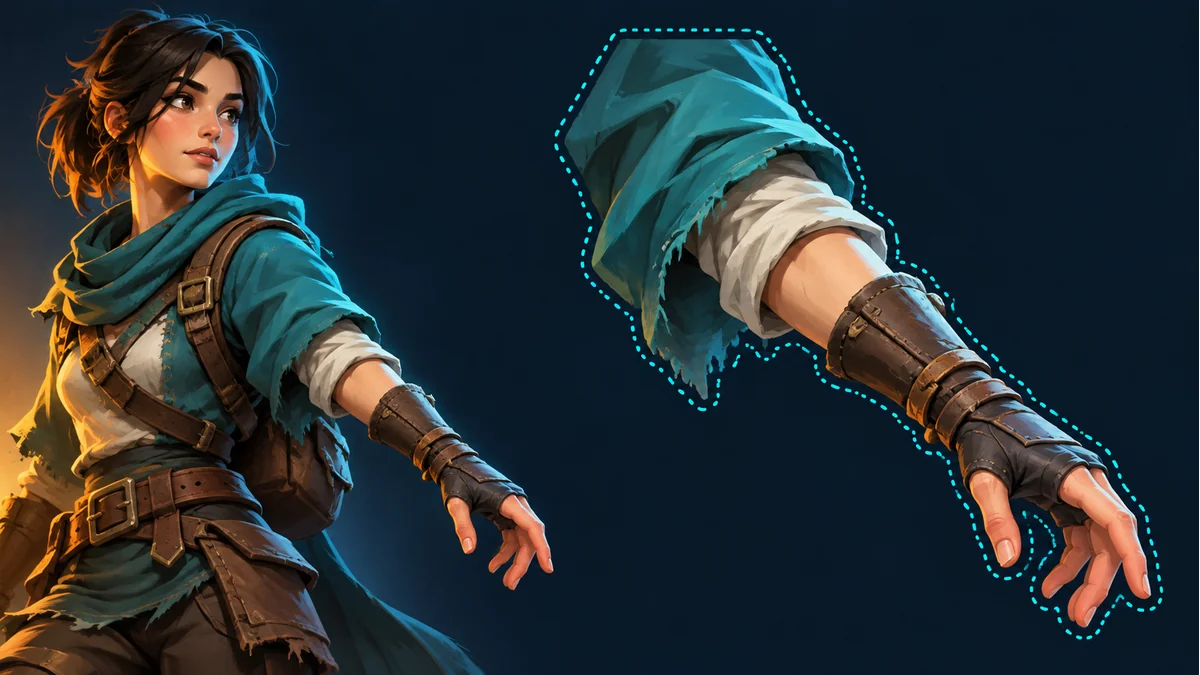
Moving a sleeve vertex makes the pattern slide without producing the shape change you expected. Check whether Edit Mesh is active and whether Deformed is enabled before adding weights or repainting the sleeve. The edit context determines what the move changes.
Move one vertex in two copies
The official reference explains that with Deformed disabled, edit-mode vertices represent texture coordinates. Moving one changes UVs without changing its position outside edit mode. With Deformed enabled, moving it changes both texture coordinates and that outside position. Preserve the original file, make two test copies and apply the same small move to the same vertex. Capture each result while editing and after leaving edit mode.
Track a pattern feature and the outline
Identify a visible feature on the sleeve and record its location on the mesh alongside the hull vertices. For a sampling adjustment, confirm that the outside shape remains acceptable. For a shape edit, check whether only UVs changed. Keep bones, weights and animation time fixed so a pose change does not hide the difference between the two copies.
Avoid a destructive shortcut
Reset has additional effects and should not become a default way to synchronize UVs and shape in an existing rig. Read the related diagnostic guide and retain a backup before using it. Restore animation and inspect extreme poses and soft edges for slipping features or clipped artwork. The Spine Workbench helps review compatible assets in motion. Perform precise mesh and UV edits in the Spine project.
Ready to try "Spine Artwork Slides While Editing a Mesh? Check Deformed Mode"?
Use our online tools to apply this tutorial to your indie game project right away.