
A Spine Part Looks Cut Off? Check Clipping Scope Before Repainting
Separate missing pixels, occlusion and runtime clipping before assigning a fix.
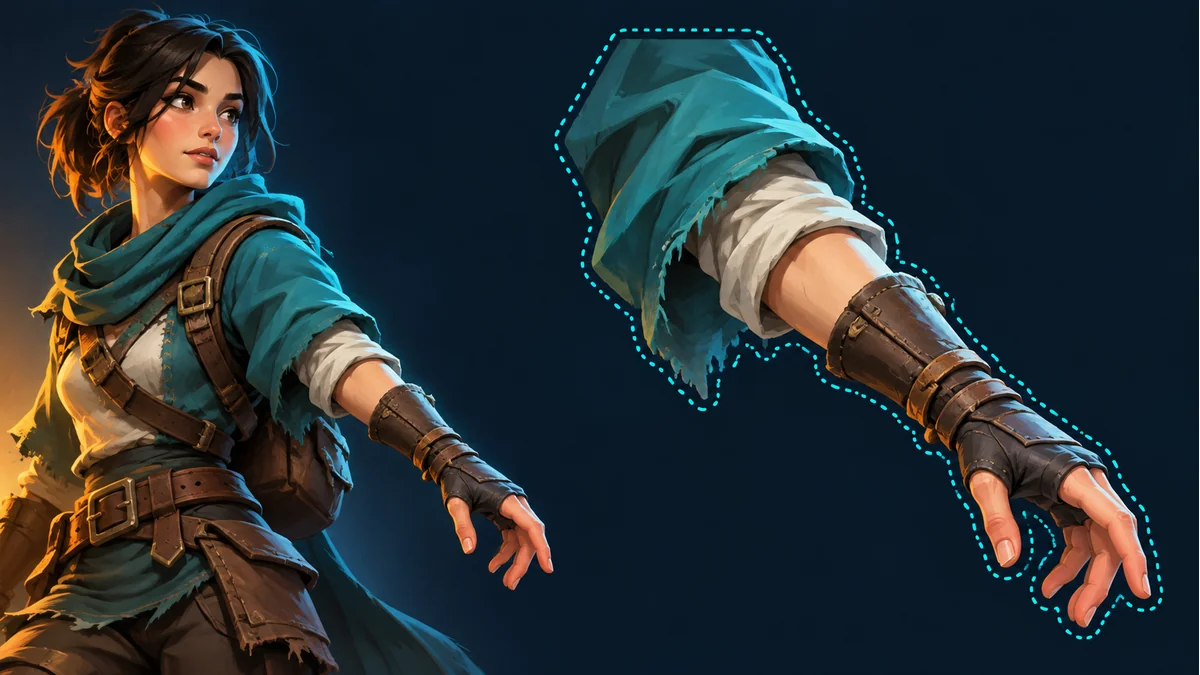
The AI-generated cover illustrates a character and a separated part. It is not a Spine clipping polygon, a workbench screenshot or a recorded defect.
A PNG looks complete on its own, yet part of the arm disappears during an animation. Before repainting it, distinguish missing source pixels, another attachment covering it, and runtime clipping. Each finding points to a different owner and a different change.
Capture the same moment in three places
- The image actually used by the current export: are the missing pixels present?
- The exact skin, animation and time position: does the issue occur only during one phase?
- The receiving project: is a clipping attachment present and active, and is the affected part within its range?
If the source image is incomplete, investigate the artwork or selection. If another part covers intact pixels, review draw order versus part position. Continue with clipping only after confirming that the actual package contains relevant clipping data.
Clipping follows a range in draw order
The official Spine clipping documentation describes a polygon that clips region and mesh rendering. Its range runs from the clipping attachment's slot through the end slot, including that end slot. It does not cut pixels out of the PNG file.
An intact image can therefore look cut off in a particular pose. Animated draw order or a changing clipping polygon can affect the result. These are conditions to inspect, not evidence that every Tooliva template includes clipping.
Record scope separately from polygon shape
Suppose a cape should be clipped but a weapon should remain unaffected. Ask the skeleton-data owner to identify the clipping attachment, start slot, end slot and actual draw order at the failing moment. First establish whether the weapon falls within the range. Then inspect the polygon, including whether its edges cross during motion. Spine documents that self-intersecting clipping polygons do not work correctly.
Making the polygon larger will not necessarily fix the wrong scope. Moving slots across every animation can also disturb intentional overlaps. Work on a project copy, change one condition at a time with the data owner, and compare the same moment again.
Give each finding a specific owner
- Missing source pixels: send the artwork owner the exact file and part.
- Intact pixels hidden behind another attachment: send the draw-order owner the intended overlap.
- Intact pixels inside an unwanted clipping range: send the skeleton-data owner the slot range, polygon and animation time.
If no clipping attachment exists, do not add one simply to explain the symptom. Check the actual resource, opacity and receiving renderer instead. This checklist does not diagnose a package that has not been inspected.
Check target-device cost after visual correctness
Spine also warns that runtime clipping consumes CPU work and should be checked on target platforms. Avoid adding excessive vertices or clipping unrelated attachments to repair a small visual defect. No device benchmark or performance percentage is claimed here.
In the Spine workbench, follow the illustrated guide to compare the template and resource in the same animation. If the cause is the exported clipping structure, hand it to someone with the appropriate data-editing capability. Do not assume the workbench contains a clipping-polygon editor.
Ready to try "A Spine Part Looks Cut Off? Check Clipping Scope Before Repainting"?
Use our online tools to apply this tutorial to your indie game project right away.