
PSD Export Lost Its Transparency? Check PNG, JPEG, and the Background
Separate unsupported transparency, export settings, and baked-in source backgrounds. Inspect one representative layer before packaging an entire UI batch.
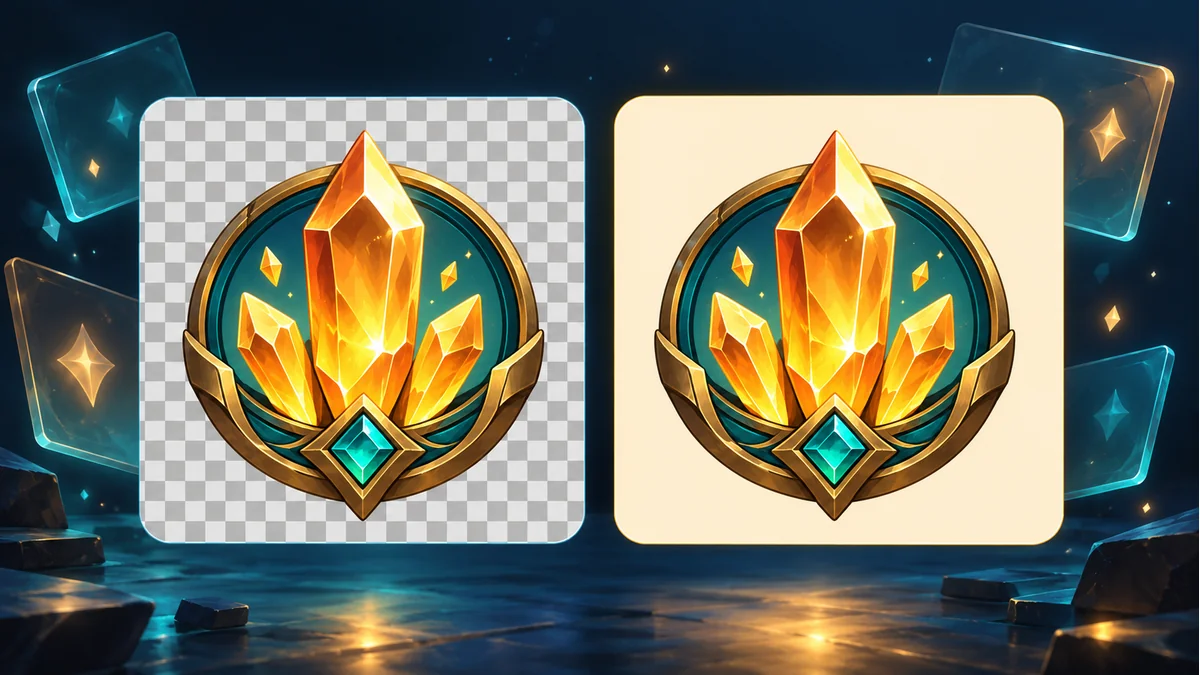
The cover is an AI-generated background comparison. Its checkerboard is a drawn pattern, not an alpha-channel test or an actual before-and-after PSD export.
If an exported button or icon suddenly has a solid rectangular background, do not immediately blame the cutout. A JPEG output cannot preserve transparency. First inspect the format and available background or transparency settings, then check whether a background is already part of the source layer.
The public instructions for the PSD Layer Exporter list PNG/JPEG layer output and explicitly state that JPEG fills a background rather than retaining transparency. Confirm that choice before exporting a large batch.
Does this handoff actually need transparency?
A separate button, icon, or decoration that will sit over different interface backgrounds normally needs its transparent regions preserved. An opaque reference preview serves a different purpose. Do not assume that an art-review image and a runtime overlay are the same deliverable.
This is a format-and-content decision, not a claim that one option always gives the smallest file or identical results in every engine. Dimensions, edges, and the target-project appearance still require inspection.
Trace the background in three steps
- Confirm the output format. If the downloaded file is JPEG, return to the export workflow and choose suitable PNG output for an asset that needs transparency.
- Review the actual transparency and background settings. Use the options offered by the current interface, not the filename alone. PNG can support transparency without every PNG necessarily containing transparent areas.
- Inspect the selected source layer. If the background is already painted into that layer’s pixels, choosing another file format does not remove it automatically. Confirm the exported object instead of repeatedly downloading it.
“Supports transparency” and “this image is transparent” are separate checks. A viewer’s checkerboard, a webpage background, and a checkerboard painted into an image can look similar without representing the same thing.
Inspect one representative layer before batching
The following is a suggested test, not a report that your PSD has already been tested: select a target layer with an easy-to-see edge, confirm its preview and output settings, download it, inspect it with a transparency-capable viewing method, and compare its appearance over both light and dark backgrounds. Expand to other layers and ZIP packages after that sample meets the handoff requirements.
- Look for an unwanted solid rectangle around the icon.
- Check translucent shadows and edges against the intended source, not just the center of the artwork.
- Distinguish a white fringe in the pixels from a viewer that simply uses a white background.
- Record the layer, format, and settings so the batch can be compared with the sample.
What will not recover discarded alpha?
Renaming .jpg to .png changes the name, not the missing transparency. Saving a flattened JPEG as PNG also does not automatically establish which regions were transparent before flattening. If the original PSD still contains an appropriate layer, return to that source and export with suitable settings. If only a flattened image remains, background cleanup is a separate image-processing task whose result needs its own inspection.
File-size reduction does not replace this check either. After the output is correct, evaluate the actual available settings in the resource compression tool if needed. Compression should not be treated as automatic recovery of a transparent background.
Start a handoff note with three items
- Asset purpose: whether it must overlay other backgrounds.
- Actual output: PNG or JPEG, plus the background and transparency choices used.
- Inspection result: edges, shadows, and light/dark-background comparisons.
For the wider layer-delivery workflow, see the PSD UI layer export guide. Confirming the format and transparency of one sample before expanding the batch leaves a clearer trail than trying to repair every file afterward.
Recommended tools
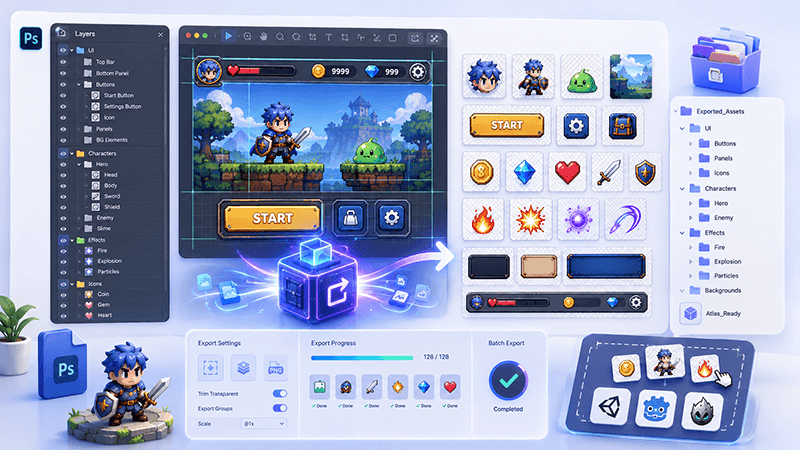
PSD Layer Exporter Guide: Export Game UI Assets from Photoshop Files
Learn how a PSD layer exporter helps game developers extract buttons, panels, icons, characters, and UI elements from Photoshop files faster.
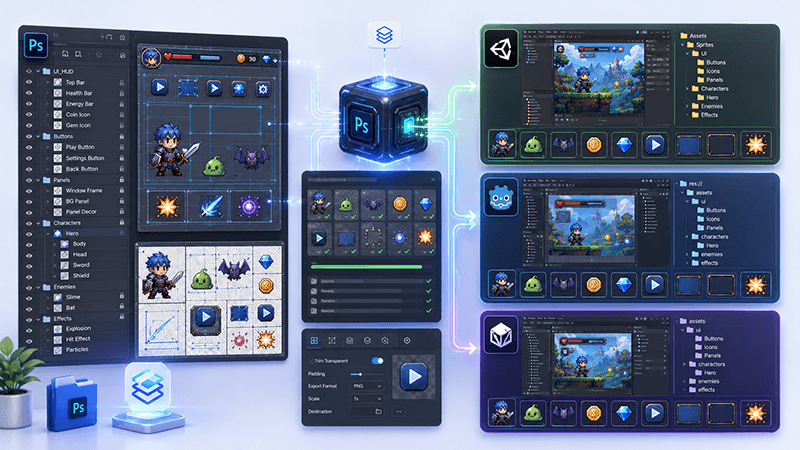
PSD to Game Engine Workflow: Prepare UI Assets for Unity, Cocos, and Godot
Learn how to convert PSD design files into clean game engine assets for Unity, Cocos, and Godot with better naming, folders, PNG export, and QA checks.
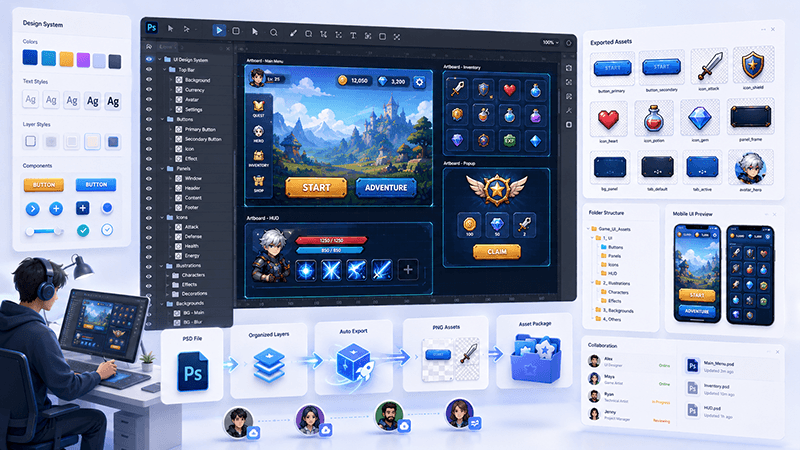
How to Batch Export PSD Layers to PNG for Game Development
A practical workflow for batch exporting PSD layers to transparent PNG assets for mobile games, UI screens, icons, and 2D production pipelines.
Ready to try "PSD Export Lost Its Transparency? Check PNG, JPEG, and the Background"?
Use our online tools to apply this tutorial to your indie game project right away.