
How to Export PSD UI Layers for Unity, Cocos Creator, and Godot
Organize a game UI PSD, identify exportable pixel layers, preserve transparency, choose PNG or JPEG, avoid duplicate names, and deliver a clean engine-ready asset package.
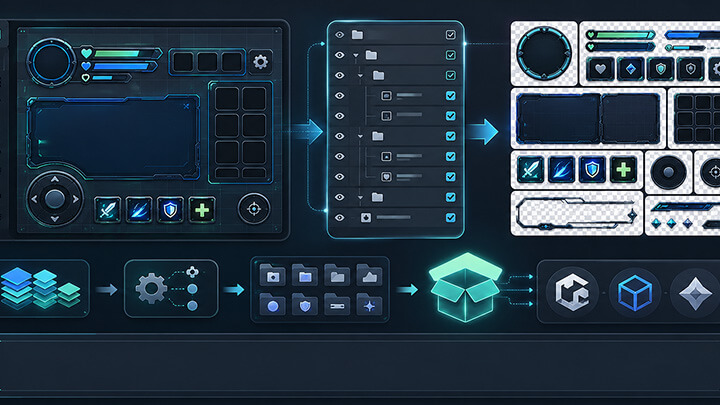
How to Export PSD UI Layers for Unity, Cocos Creator, and Godot
A polished game UI mockup is not yet an engine-ready asset package. The development team needs individual buttons, panels, icons, backgrounds, state variations, and decorations with clear names and correct transparency. Exporting these one by one becomes slow and error-prone when the design changes frequently.
The PSD Layer Exporter can parse one or multiple PSD files in the browser, display exportable pixel layers, and download selected layers as PNG or JPEG files, including multi-document ZIP packages. A reliable result begins with a PSD that has been prepared for delivery.
Why PSD-to-Engine Handoffs Fail
- Layers still have names such as Layer 1, Copy 4, or Final Final.
- Visible artwork depends on several adjustment and clipping layers.
- Text, icon, glow, and button background are combined inconsistently.
- Hidden drafts and rejected variants remain in the document.
- Different groups contain layers with the same export name.
- Large transparent margins make every texture bigger than necessary.
- The exported asset does not preserve the intended alpha edge.
Prepare the PSD for Delivery
Use Semantic Layer Names
A useful name describes the screen, component, and state:
home_btn_play_normal
home_btn_play_pressed
battle_icon_coin
reward_panel_background
settings_toggle_on
Use one naming convention throughout the project. Avoid spaces and punctuation that may cause inconsistent file or script handling.
Separate Exportable Artwork from Documentation
Guides, measurements, notes, and rejected concepts should be placed in clearly marked groups and excluded from export. If a reference layer is required for alignment, identify it explicitly so it is not mistaken for a runtime asset.
Prepare Rasterized Delivery Copies
Smart objects, adjustment layers, layer styles, text effects, and special blending may not reproduce identically outside Photoshop. Keep the editable master, but create rasterized copies of complex elements that must match the approved design exactly.
Prefer Predictable Color and Bit-Depth Settings
A conventional RGB 8-bit document is generally easier to move through web and engine workflows than an unusual color mode or high-bit-depth file. Preserve the original master if the art team needs a different production space.
The Batch Export Workflow
1. Add One or Multiple PSD Files
Batch documents by feature or release version rather than uploading an entire archive without structure. Smaller groups make it easier to identify a file that cannot be parsed.
2. Review the Composite Preview
Confirm that the file is the approved version. Duplicate filenames such as final.psd and final_v2.psd are common sources of accidental old exports.
3. Select Only the Required Pixel Layers
Do not export every visible item automatically. Select the actual runtime assets and exclude annotations, old states, reference images, and flattened preview composites.
4. Choose PNG or JPEG
| Asset | Recommended Format | Reason |
|---|---|---|
| Buttons and icons | PNG | Sharp edges and transparency |
| Decorative overlays | PNG | Preserves alpha gradients |
| Large opaque background | PNG or JPEG | Choose based on quality and size targets |
| Temporary review image | JPEG | Compact and easy to share |
5. Export Individual Files or a ZIP Package
Use individual downloads for a small replacement and ZIP for a complete screen or document group. Include the feature and version in the archive name.
Inspect the Exported Assets
Before importing into the engine, check:
- Transparent edges on both light and dark backgrounds.
- Unexpected white, black, or colored halos.
- Excessive empty canvas around small icons.
- Consistent dimensions across button states.
- Unique filenames with no accidental overwrites.
- Nine-slice panels with enough border area.
- Backgrounds that are truly opaque if exported as JPEG.
From PSD Layers to Engine Resources
Some exported layers may still contain several icons in one image. Use the AI Sprite Cutter to divide those collections into individual assets. Once the layer set is approved, group related images with the Texture Packer and export engine-oriented atlas coordinates.
A practical pipeline is:
- Organize and name the PSD.
- Prepare rasterized delivery layers where needed.
- Batch-export PNG or JPEG assets.
- Inspect transparency, dimensions, and filenames.
- Split icon collections if necessary.
- Pack runtime groups into texture atlases.
- Import and configure pivots, nine-slice borders, and states.
Engine-Side Organization
Mirror the design structure without reproducing every PSD group as a runtime folder. Organize assets by screen and loading behavior. Common elements such as close buttons or currency icons can enter a shared UI group, while large screen-specific art should remain separate.
Keep a source-to-runtime naming map if the engine applies different naming rules. Automated import scripts become much easier when the PSD layer names are already stable.
Common Export Mistakes
- Exporting all visible layers, including old concepts and notes.
- Using duplicate names that overwrite files in the ZIP.
- Choosing JPEG for assets that need transparency.
- Assuming complex Photoshop effects will render identically everywhere.
- Failing to compare the exported composition with the approved mockup.
- Packing all screens into one atlas regardless of loading behavior.
- Changing layer names on every revision and breaking engine references.
FAQ
Can every Photoshop layer be exported exactly as it appears?
Not always. Prepare rasterized delivery copies for complex layers when exact appearance matters.
Should game UI assets be exported as PNG or JPEG?
Use PNG for transparency and sharp interface edges; consider JPEG only for suitable opaque images.
Why are unique layer names important?
They prevent overwrites and make automated import, binding, and atlas creation more reliable.
Should all exported UI layers be placed in one atlas?
No. Group assets by screen, loading lifetime, material, and shared usage.
Final Thoughts
A good UI handoff is repeatable. The PSD structure, export names, transparency rules, and engine groups should remain stable across revisions. Use the PSD Layer Exporter to reduce repetitive work, while keeping the source document disciplined enough for reliable automation.
FAQ
Can every Photoshop layer be exported exactly as it appears?
Not always. Smart objects, adjustment layers, text effects, masks, and special blending can depend on Photoshop rendering. Prepare rasterized delivery copies when compatibility is critical.
Should game UI assets be exported as PNG or JPEG?
Use PNG for transparent buttons, icons, and decorations. JPEG may be suitable for large opaque images when the project accepts lossy compression.
Why are unique layer names important?
Unique semantic names prevent file overwrites, reduce import mistakes, and support automated binding or atlas generation.
Should all exported UI layers be placed in one atlas?
No. Group assets by screen, loading lifetime, material, and shared use so unrelated content does not load together.
Recommended tools
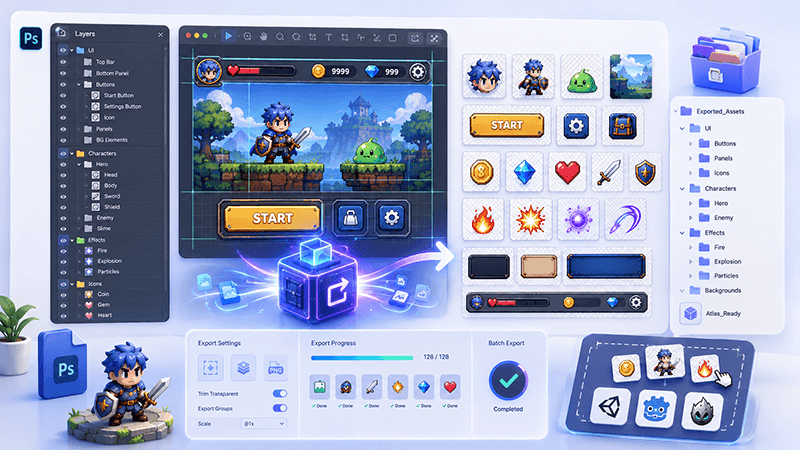
PSD Layer Exporter Guide: Export Game UI Assets from Photoshop Files
Learn how a PSD layer exporter helps game developers extract buttons, panels, icons, characters, and UI elements from Photoshop files faster.
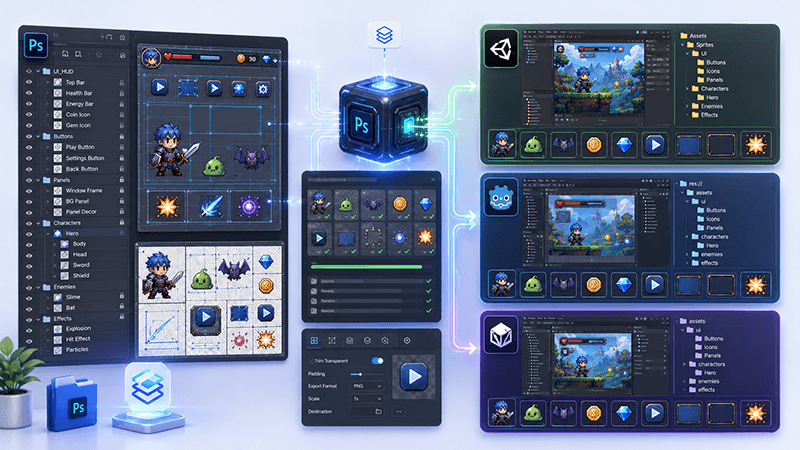
PSD to Game Engine Workflow: Prepare UI Assets for Unity, Cocos, and Godot
Learn how to convert PSD design files into clean game engine assets for Unity, Cocos, and Godot with better naming, folders, PNG export, and QA checks.
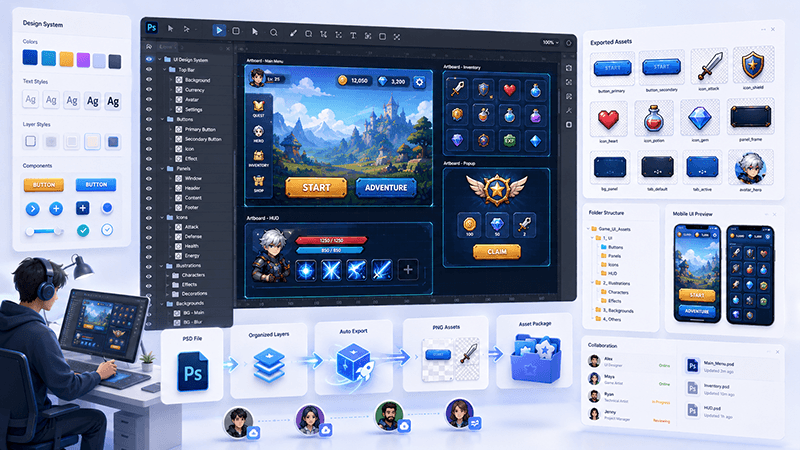
How to Batch Export PSD Layers to PNG for Game Development
A practical workflow for batch exporting PSD layers to transparent PNG assets for mobile games, UI screens, icons, and 2D production pipelines.
Ready to try "How to Export PSD UI Layers for Unity, Cocos Creator, and Godot"?
Use our online tools to apply this tutorial to your indie game project right away.