
When a Sprite Cutter Merges Objects: Gaps, Touching Edges, and Overlap
Identify oversized selections, background connections, and genuine occlusion. Test manual boxes and cleanup on sample slices, and know when to return to the source artwork.
The AI-generated cover contrasts crowded and separated prop layouts. It does not show real before-and-after detection results.
You upload a sheet of icons or props and find that one slice box contains two objects. Running detection repeatedly may not change the result. First distinguish objects that are merely close together, objects connected by background details, and objects that genuinely overlap. Each case needs a different next step.
This guide uses the box selection, movement, deletion, background cleanup, and export operations described on Tooliva's current Sprite Cutter page. It focuses on merged slices rather than undocumented automatic separation settings.
Inspect the source image, not just the number of boxes
Zoom in with AI Sprite Cutter and check the actual relationship between the objects:
- Separate silhouettes inside an oversized box: a clear gap exists between the objects. Try individual manual selections first.
- Background, shadows, or decoration connect them: two visually distinct objects still have visible material between them. Decide which connections should remain before removing anything.
- Genuine overlap: one object hides part of another. New selection boxes do not reconstruct artwork missing from the source.
A detection result alone does not establish the tool's internal grouping mechanism. These are visual inspection categories, not a guarantee that a single parameter can separate every case automatically.
When a clear gap exists, test a small manual correction
The current page documents drawing new slices, moving boxes, and deleting them. Test one pair of objects before correcting the entire sheet:
- Identify the objects inside the merged selection and note its original extent.
- Select and delete the unwanted merged box, then draw separate selections from an empty area of the canvas around the intended objects.
- Check the complete boundaries. A box centered on a prop can still cut off a long tip or include a neighboring object.
- Download a few sample slices before batch export. The page also documents undo for relevant editing actions; confirm its behavior in the current interface.
Two boxes are not automatically better than one if both outputs are wrong. If a new rectangle still contains part of its neighbor, the objects have not been prepared as clean independent assets.
Preserve real details when cleaning background connections
The page provides tolerance, feathering, color picking or punch adjustments for background cleanup, followed by applying the result. Check whether the background shares colors with the object before making a limited adjustment. Aggressive removal can damage pale icons, glow edges, or thin lines along with the background.
There is no useful fixed tolerance value for every sheet. Compare which pixels belong to the background and which belong to the prop, then inspect the edge before and after editing. A rope, tassel, or intended shadow should not be removed solely because it makes selection less convenient.
Trimming transparent edges tidies a slice's extent. It is not redrawing, anatomical part separation, or missing-pixel reconstruction. Check the remaining padding and object dimensions instead of treating these operations as interchangeable.
For genuine overlap, return to the source artwork
If a sword lies across a shield, part of the shield may be hidden. Drawing separate sword and shield boxes does not supply that missing artwork. Slicing, background removal, and trimming do not establish that the hidden region has been restored.
Use the layered source to retrieve separate objects, or prepare a new version with clear spacing. If you generate replacement artwork, request complete visible objects with no touching or overlap and enough surrounding space. Inspect the actual output rather than treating the prompt itself as proof of compliance.
If the final assets are intended for skeletal animation, inspect the connection areas needed during motion too. See sprite cutting versus Spine character parts so a complete prop slice is not mistaken for a ready-to-rig body part.
Check four things in the downloaded samples
- Contents: each image contains the intended object without a neighbor or meaningless fragments.
- Contours: blade tips, bottle openings, cords, and other thin edges have not been clipped by a box or removed during cleanup.
- Transparent edges: inspect against light and dark backgrounds. Confirm that any retained shadow or glow fits the intended use.
- Names and count: compare the output to your target-object list. The automatically detected box count is not the acceptance criterion. Remove unwanted slices before batch export.
The tool offers individual PNG and slice ZIP downloads, plus a transfer to the texture-packing workflow. Check the image contents before arranging an atlas so selection mistakes do not spread into the next stage.
Reduce touching objects when preparing the next source sheet
Keep each object fully visible with a clear gap and a background that can be distinguished from the subject. Test narrow weapons, glow effects, and translucent icons separately where needed rather than forcing the same cleanup approach onto every asset.
Start in AI Sprite Cutter with one representative pair. Use box corrections when they solve the problem. When the source itself contains occlusion or missing artwork, return to that source instead of repeating detection indefinitely.
Recommended tools
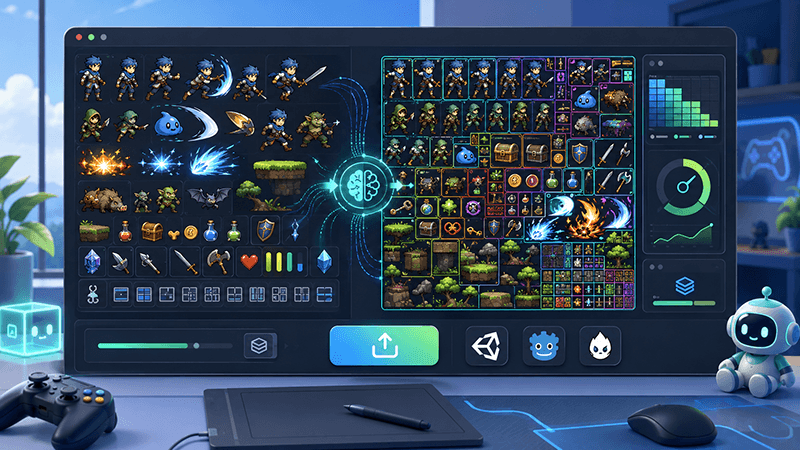
Automatic Sprite Slicing and ZIP Export: A Faster Way to Prepare 2D Game Assets
Learn how automatic sprite slicing and one-click ZIP export can help indie game developers turn character sheets, icon collections, and AI-generated 2D artwork into organized PNG assets faster.
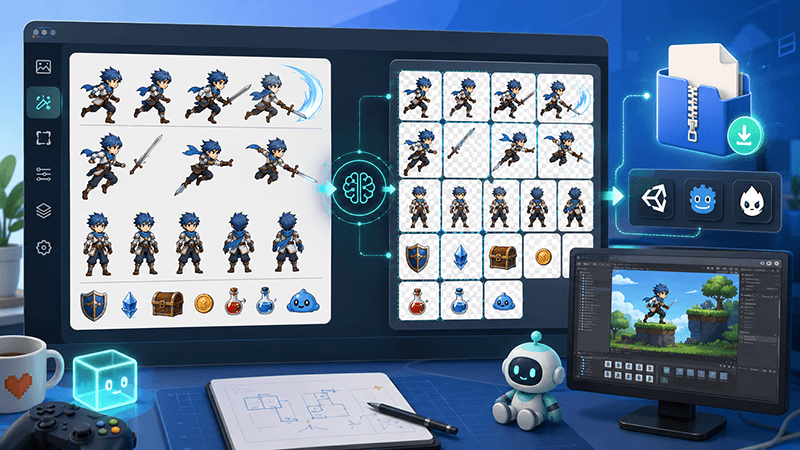
From AI Sprite Cutter to Sprite Sheet Maker: A Complete 2D Asset Workflow
A practical workflow guide for turning raw 2D images into sliced PNG files, downloading them as a ZIP package, and using those files to create sprite sheets for Unity, Cocos, Godot, and custom game engines.
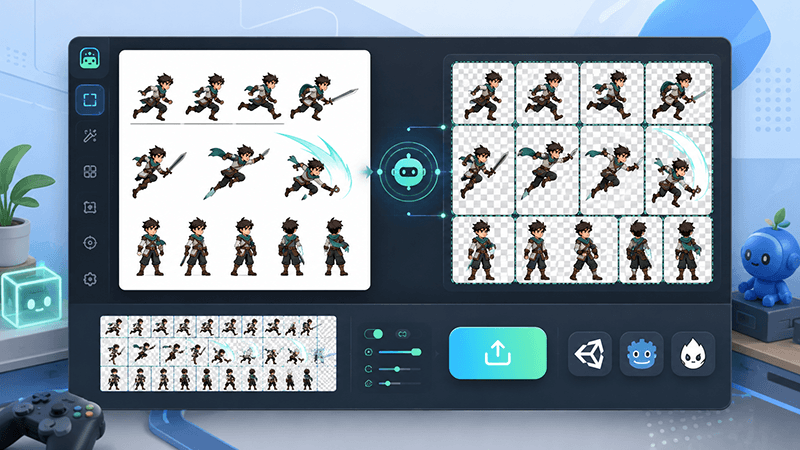
AI Sprite Cutter: How Indie Game Developers Can Split 2D Game Assets Faster
A practical guide for indie game developers, 2D artists, and prototype teams. Learn how an AI sprite cutter can split character sheets, UI icons, white-background assets, and AI-generated artwork into clean PNG files for Unity, Cocos, Godot, and sprite sheet workflows.
Ready to try "When a Sprite Cutter Merges Objects: Gaps, Touching Edges, and Overlap"?
Use our online tools to apply this tutorial to your indie game project right away.