
Spine Colors Still Wrong After Replacing a PNG? Check Slot Tint
Separate source pixels from slot and attachment colors before regenerating a character part. Keep the same animation time for each comparison.
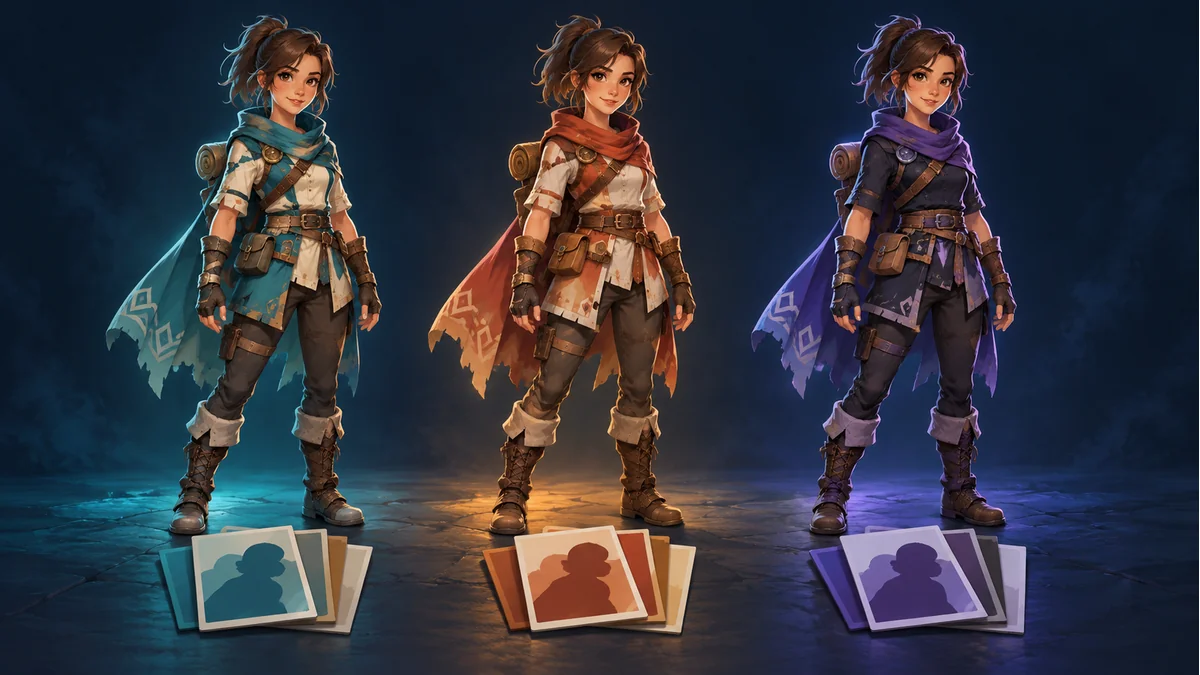
A replacement shirt PNG looks right on its own, yet the character still appears tinted or translucent. Before generating another image, distinguish the artwork from the color state applied while drawing it. Replacing a texture does not establish that the surrounding animation or rendering state changed.
Define the mismatch before changing anything
Record the attachment, its slot, the animation and the exact time. Does the whole sleeve change hue, do only its edges darken, or does the entire character look different? Keep the original package and the files actually loaded by the project. These observations point to different investigations.
An image viewer and a game can differ in background, scaling and color management. A PNG looking correct in one viewer is useful evidence about that view, not proof that a specific shader or runtime property is faulty.
There are colors outside the source PNG
The official Spine Slots guide explains that a slot color tints its attachment, controls opacity and can be keyed. Attachments have a separate color that cannot be keyed in the same way. Ask the asset or integration owner to identify the actual values and where they originate.
Do not assume a universal color multiplication formula for every renderer. Custom materials, blending and backend behavior require project-specific documentation. The immediate task is to identify the state, not guess a numerical correction from a screenshot.
Compare one instant, then follow the timeline
- At a fixed animation time, confirm the texture belongs to the intended export batch.
- Keep that texture unchanged and record slot color, attachment color, alpha and any confirmed application tint.
- Follow the same animation and mark when the difference first appears. Check actual color keys or application state at that point.
- Have the responsible developer change one confirmed condition in a test copy and compare the same instant again.
A shirt that changes only during a hit animation suggests a time-dependent condition; it does not prove that a hit-flash system exists. If neutral white is appropriate for this project's normal rendering, the owner can use it as a controlled comparison. Erasing every color key could also remove intentional effects.
Account for two-color tinting when it actually exists
The guide describes Tint Black as a way to control lighter and darker image portions separately. If the asset uses it, include the light and dark colors in the handoff. Checking a single RGB value is then incomplete. This is not a claim that every template uses Tint Black or that every runtime exposes an identical inspector.
Route the correction to the right owner
When the source artwork is genuinely wrong, use Spine Workbench and its public guide to identify the resource and the part to rework. A correct PNG with different color data needs an engineering handoff; the guide does not establish an arbitrary slot-color timeline editor in the workbench.
Keep the file batch, slot and attachment names, animation time, color origin and before/after observations together. Edge-only darkening still needs a separate alpha and filtering investigation. No target-engine color measurements were performed for this article.
Ready to try "Spine Colors Still Wrong After Replacing a PNG? Check Slot Tint"?
Use our online tools to apply this tutorial to your indie game project right away.