
Spine Data Will Not Load? Record Three Different Versions First
Keep the exact error and file batch alongside version evidence, and distinguish unreadable data from an animation that loads but displays incorrectly.
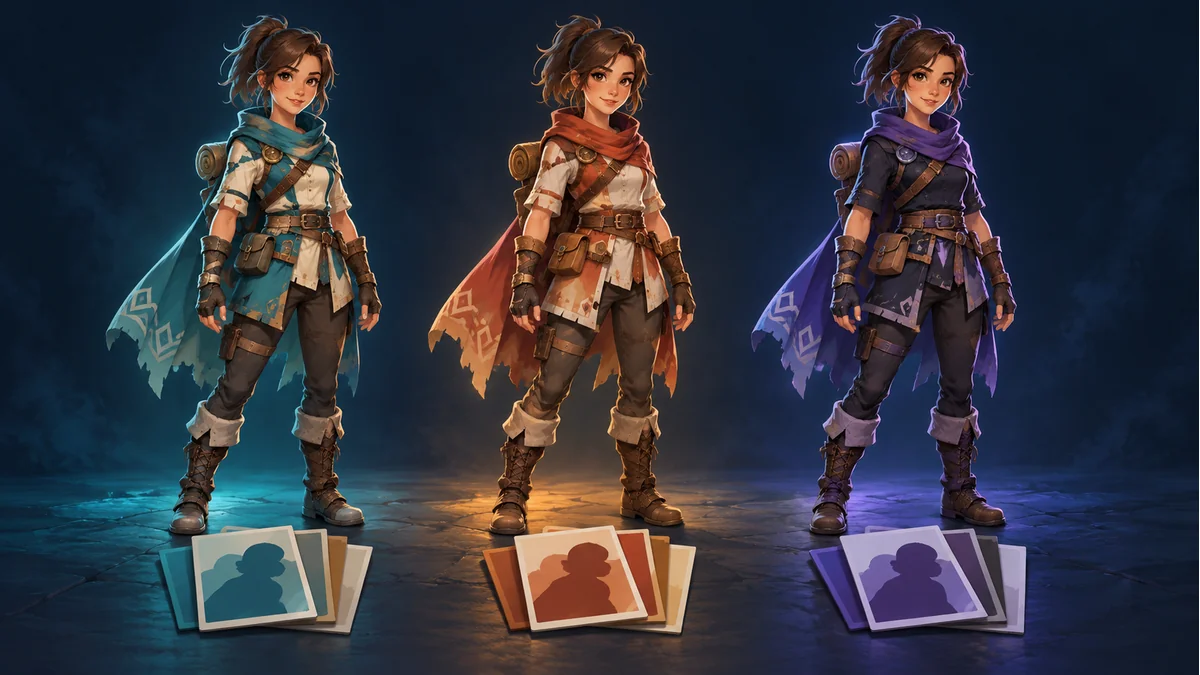
The reused AI cover depicts character appearances. It is not evidence of a tested engine or runtime combination.
A resource previews in the workbench but cannot be read by the target project. That does not immediately justify redrawing every part. Separate failure to read data from a visual problem after playback starts, then gather the actual version evidence.
The official Spine versioning guide requires the major and minor editor version used for JSON or binary export to match the Spine Runtimes version. This is not a promise that installing the newest release will work, and the engine's name does not establish the installed Spine runtime.
Record three independent entries
- Export data: version information from the actual file or export record. Mark it unconfirmed when evidence is absent.
- Spine runtime: the integration package, branch, or version actually installed, with a traceable source.
- Engine: the real editor and build environment used for reproduction.
These are manual handoff notes, not new workbench configuration fields. Do not substitute an example version for the current version of every Tooliva export. This article has not inspected your package or tested a particular combination.
Preserve the error and locate the failing stage
Keep the exact error, whether it occurs during import or playback, and the file batch actually loaded. If data cannot be read, inspect format, version, and loading path first. If animation already plays but one appearance is wrong, investigate references and the affected scope rather than labeling every symptom a version fault.
Avoid replacing the runtime, export package, and artwork in one attempt. Retain the baseline, choose a small sample, and identify the specific condition changed in each comparison.
Agree on the direction of a compatibility change
One route is to retain the target environment and confirm whether the upstream workflow can supply valid data for it. Another is for the integrator to assess a runtime update and its effects on project code. Choose based on real capabilities and project constraints, rather than automatically preferring the largest version number.
If export changes are required, confirm the available options in Spine Workbench and the actual handoff process. The illustrated guide demonstrates preparation and multi-skin export; it does not establish a selector for every historical format.
A changed version string is not a verified conversion
Editing version-looking text in JSON proves only that the text changed. It does not establish that the structure now meets the target runtime's requirements. Getting past one error is also insufficient evidence for all actions and skins.
When a converted copy is supplied, retain the original and document the method. Check loading, planned actions, skins, and image references separately. “No error dialog” should not replace playback acceptance.
Hand over a minimal, honest record
For example: “Batch A; data version unconfirmed; installed integration source identified; import returns this actual error; artwork unchanged during this comparison.” A is only a batch label, not a product format or ready-made diagnosis.
- Confirmed values and their sources.
- Unconfirmed values and who will check them.
- The condition actually changed in this attempt.
- Separate loading, motion, and appearance outcomes.
The single-skin versus shared-failure guide helps establish the affected scope. Version checking is an investigation path, not engine compatibility certification or a substitute for evidence from the real files and project.
Ready to try "Spine Data Will Not Load? Record Three Different Versions First"?
Use our online tools to apply this tutorial to your indie game project right away.