
Find JPEG Recompression Damage in a Game Background
Compare one direct export with a second encode using identical delivery settings and three matching crop areas.
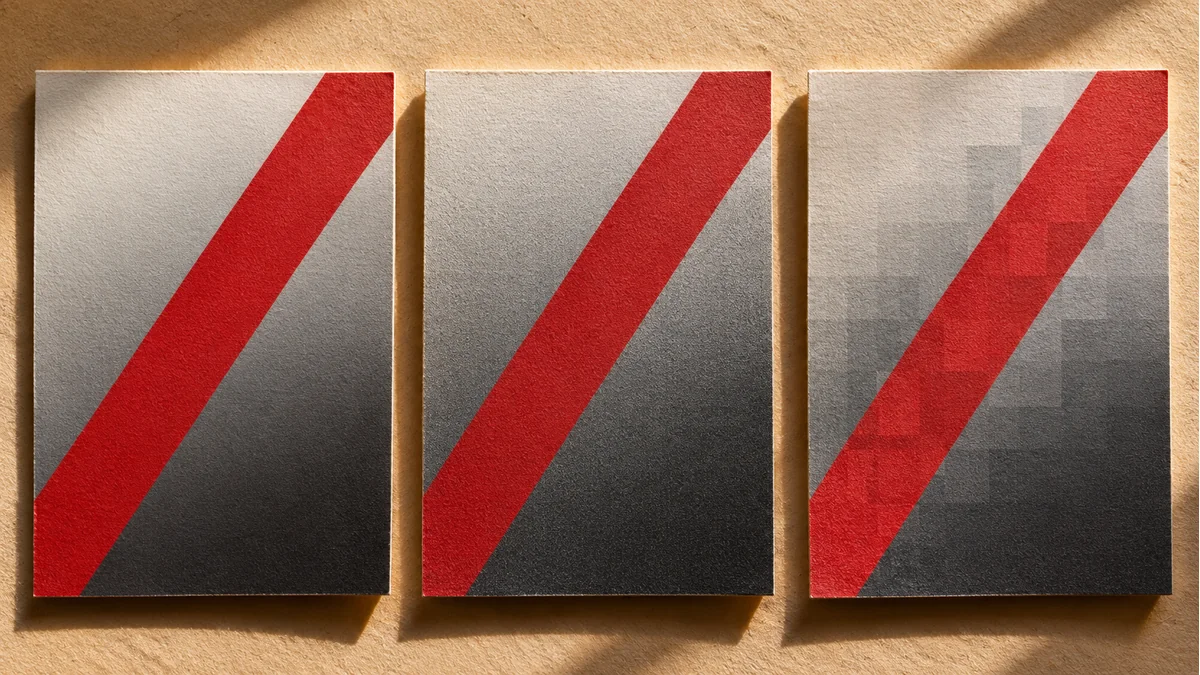
A background has picked up speckles along a diagonal and steps in a smooth sky. Check which file went into the last export. A common lossy JPEG encode can change pixel values each time it processes the image.
Keep two export paths comparable
Pick a lossless master that contains a slanted edge, a smooth gradient, and fine texture. Export your first delivery JPEG from that master. For the second path, create an intermediate JPEG with a different lossy setting, then open that intermediate and export again using the delivery settings. Use the same encoder, dimensions, color handling, and final quality settings for both paths.
Inspect the same regions at the same scale
- Compare both outputs with the master at the game’s display size. Zoom in on the same edge, sky, and fine texture to identify the differences.
- Record byte size and where the damage appears. Matching quality settings do not guarantee matching file sizes.
- If both versions look poor, revisit the delivery settings from the master. If the intermediate path looks worse, change the export workflow so revisions start from the master.
Record which source was used, the output dimensions, and the encoder settings. If a JPEG is the only available source, keep a copy and limit further lossy encodes.
Prepare a sample with the Tooliva asset tool, then run the checks in your own project.
Ready to try "Find JPEG Recompression Damage in a Game Background"?
Use our online tools to apply this tutorial to your indie game project right away.