
Android Icon Has Two Layers, but the Foreground Still Has a Background?
Use resource, pixel-content and display evidence rather than treating a generated ZIP as proof that the subject has been separated.
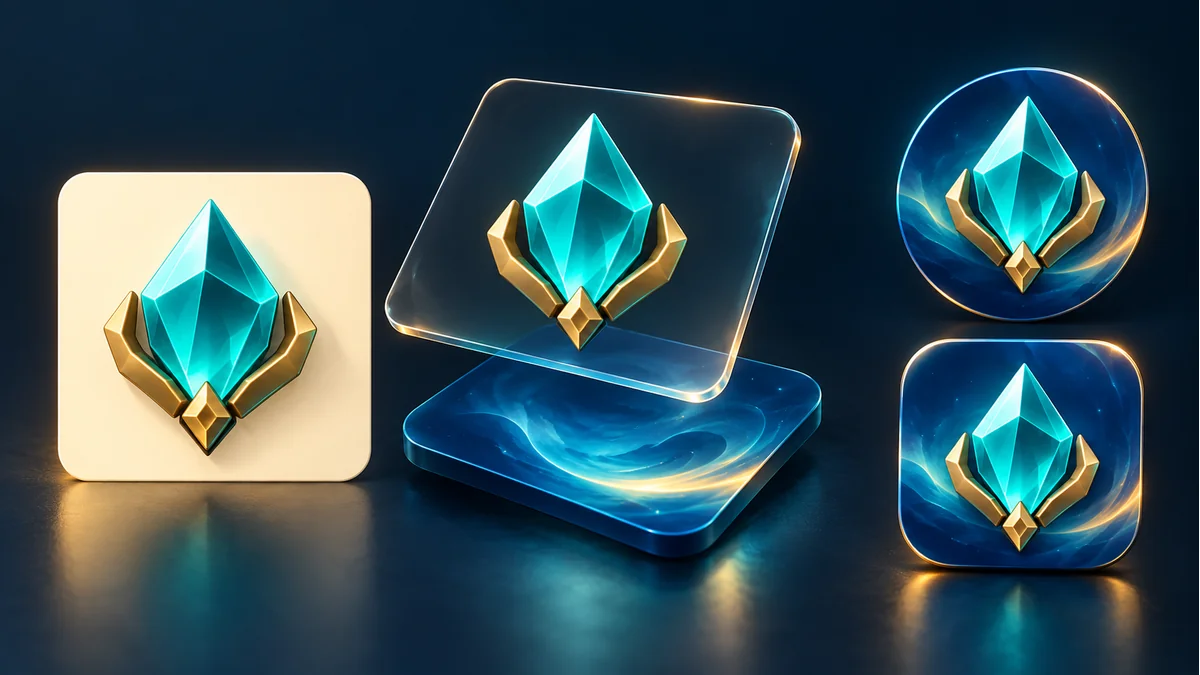
The built-in imagegen cover illustrates layering. Its glass-like plane is not actual transparent pixel data, an Android screenshot, or a compliance test.
A package contains foreground, background, and configuration files, yet the subject still appears on a pale square. If that happens, investigate the resource structure and the artwork content separately before changing the outer corner treatment.
Resource layers and visual separation are different checks
The official Android adaptive icon guide describes foreground and background resources with system-applied masks. A background already painted into the foreground bitmap will not automatically disappear merely because another background resource exists.
This is a bitmap-input troubleshooting scenario, not a diagnosis of a current Tooliva export defect. An intentionally designed panel may legitimately remain part of the foreground.
Inspect the references actually used
Preserve the export and source art. Identify the resources referenced for each layer and the icon set the application ultimately uses. A new file in a folder does not establish that the project references it.
The official Android Studio icon tool guide describes separate foreground and background inputs. Different filenames do not prove semantic separation of subject and background. Avoid repeatedly editing an obsolete resource that the application never loads.
Check transparency rather than the filename or checkerboard
An alpha channel does not establish that the intended reveal regions are transparent. A checkerboard can itself be painted pixels. Inspect the actual content with a reliable image tool, retain the original, and do not rely on a PNG extension or one preview screenshot.
If a background is baked into the foreground, define which areas should remain and which should reveal the layer beneath. Pale colors may be subject highlights or white decorations, not unwanted background.
Hold the foreground fixed and change the background
- Place the same foreground copy over light and dark backgrounds in an independent compositing or preview tool.
- Inspect intended reveal regions and residual edge colors.
- If a patch remains unchanged, check whether it belongs to the foreground and whether references are correct.
- Record source, processed copy, and observations without presenting the proposed comparison as a completed device test.
When subject separation is needed, process a copy with the background-removal tool, then inspect fine edges and retained details. This is not a guarantee of a universal one-pass result or a reason to overwrite the only original.
Return to generation and project acceptance
Check actual scale, padding, background, and export in the App Icon Generator, then confirm the receiving project loads that set. Once content is correct, inspect intended devices, display shapes, and small-size readability.
For a broader composition check, see the existing mobile icon safe-zone guide. This article adds reference and foreground-content diagnosis. No test app was installed here, and neither this conceptual cover nor a ZIP package proves platform approval.
Recommended tools
How to Design Better Mobile App Icons for App Store and Google Play
Learn practical app icon design principles for better recognition, stronger store presentation, and cleaner iOS and Android exports.

Best Sound Effects to Create First for an Indie Game Prototype
A practical checklist of the most important game sound effects indie developers should create first, including UI clicks, pickups, hits, rewards, errors, transitions, and completion cues.
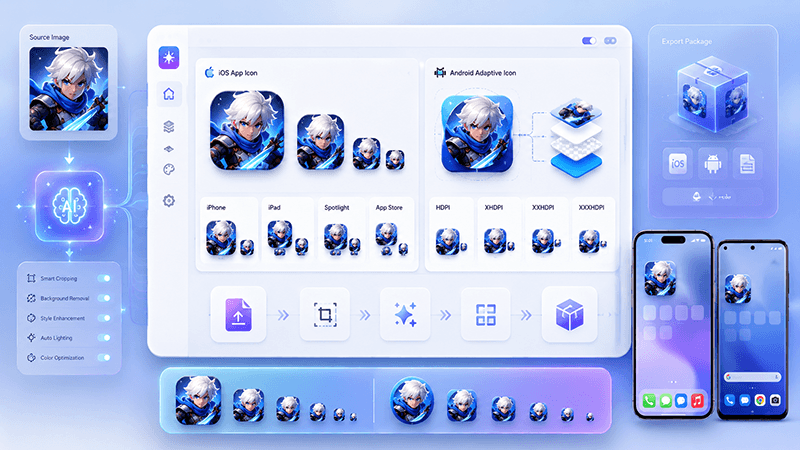
App Icon Generator Guide: Create iOS and Android Icons from One Image
Learn how an app icon generator turns one source image into iOS and Android icon sizes, adaptive icons, app store assets, and organized export files.
Ready to try "Android Icon Has Two Layers, but the Foreground Still Has a Background?"?
Use our online tools to apply this tutorial to your indie game project right away.