
How to Split a Sprite Sheet into Individual PNG Frames Online
Learn how to inspect a sprite sheet, choose grid or subject detection, preserve padding and transparency, reorder frames, and export clean PNG sequences for Unity, Cocos Creator, or Godot.
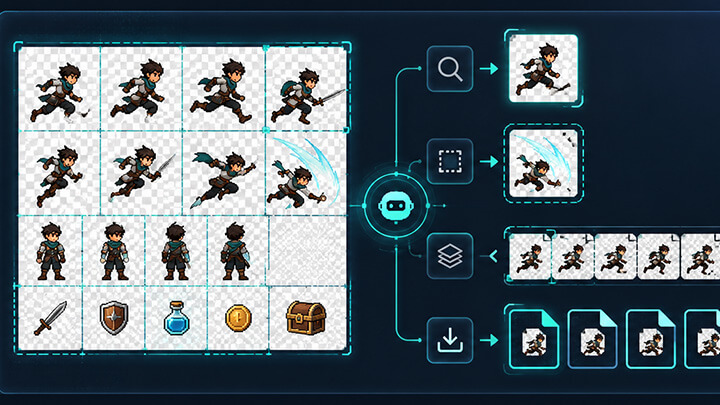
How to Split a Sprite Sheet into Individual PNG Frames Online
A sprite sheet is convenient for distribution and rendering, but it is not always convenient for editing. You may need to repair one animation frame, remove duplicates, change the order, isolate several actions, or rebuild an atlas for a different engine. In those cases, the first step is to extract the sheet into clean individual PNG files.
The process is more than cutting a large image into equal rectangles. A reliable result depends on the sheet layout, margins, padding, transparency, frame order, and the way the final animation will be anchored in the engine. The AI Sprite Cutter can identify usable regions, generate editable slice boxes, and export a PNG sequence or ZIP package.
Inspect the Sprite Sheet Before You Cut It
Before choosing a split mode, zoom in and answer a few questions:
- Are all frames the same width and height?
- Is the sheet arranged in a predictable left-to-right, top-to-bottom order?
- Is there an outer margin around the sheet?
- Is there spacing between neighboring frames?
- Does each frame have a transparent background or a solid color background?
- Do shadows, particles, or weapon trails connect two frames?
These details determine whether a regular grid or subject-based detection will produce the better result.
Choose the Right Splitting Method
Manual Grid
Use a manual grid when the sheet is regular and you know the row and column count. This is the most predictable option for classic pixel-art sheets and exported animation atlases with fixed cell sizes.
Automatic Grid Detection
Automatic grid detection is useful when cells are regular but the dimensions are unknown. It can provide a fast starting point, but the result should still be checked for margins and empty cells.
Subject Detection
Subject detection works well when sprites are separated by transparent or uniform background areas and do not follow a strict grid. It is also useful for item sheets and UI icon collections. Connected shadows, particles, or glow effects can cause two subjects to be recognized as one region, so manual editing remains important.
A Reliable Sprite-Sheet Splitting Workflow
1. Upload the Highest-Quality Source
Use the original PNG whenever possible. JPEG compression introduces small color blocks around hard edges, which can interfere with background removal and subject recognition.
2. Generate the Initial Slice Boxes
Run the appropriate detection mode and treat the result as a first pass. Check the edges of the sheet, very small icons, transparent effects, and any region where two sprites are close together.
3. Correct Missing or Merged Frames
Move, resize, delete, or add boxes until each output represents one intended asset. A large automatic box that contains two characters should be replaced with two precise boxes rather than accepted as-is.
4. Handle the Background
For solid-background sheets, remove the background carefully and preview the result on both light and dark surfaces. If the sheet contains smoke, glow, or partially transparent particles, a dedicated alpha workflow such as Smart Matting may preserve soft edges better than aggressive color removal.
5. Trim Transparent Borders Carefully
Trimming empty pixels can reduce file size, but animation frames need special treatment. If every frame is trimmed independently without storing its original offset, the character may appear to jump during playback. Keep a consistent canvas or preserve offset metadata.
6. Reorder and Rename the Frames
Use a consistent naming pattern that includes the character, action, direction when needed, and a zero-padded frame number:
hero_idle_001.png
hero_idle_002.png
hero_run_right_001.png
hero_attack_001.png
Delete unused cells and verify that the final order follows the intended animation.
7. Export a PNG Sequence or ZIP
Export individual PNG files when you expect further editing. A ZIP package is more convenient for transferring a complete action or asset set without losing filenames.
Margins, Padding, and Neighboring-Pixel Bleeding
| Layout Detail | What Can Go Wrong | Recommended Check |
|---|---|---|
| Outer margin | The first and last cells are offset | Measure the border before calculating cell size |
| Inter-frame padding | Neighboring pixels enter the crop | Include spacing in the grid calculation |
| Transparent border | Exports waste space | Trim only when offsets or a common canvas are preserved |
| Solid background | Colored halos remain around sprites | Preview on several background colors |
| Empty cells | Blank PNG files are exported | Disable or delete unused cells |
Preparing Extracted Frames for a Game Engine
After extraction, decide whether the project should keep individual PNG files or repack them into an atlas. Individual files are easier to edit. A texture atlas is easier to manage at runtime and can reduce texture switching when engine batching conditions are met.
Once the frame set is final, send it to the Texture Packer to create a new sprite sheet and engine-oriented coordinate data. Before importing, verify frame names, pivots, filtering, animation speed, and loop settings.
Common Mistakes
- Dividing the image evenly without accounting for margins.
- Accepting every automatic slice without manual review.
- Removing low-opacity effect pixels as if they were background noise.
- Trimming each character frame to a different canvas without offset data.
- Using frame names such as 1, 2, and 10 without leading zeros.
- Checking frames individually but never previewing the complete animation.
FAQ
What is the most accurate way to split a regular sprite sheet?
Use a manual grid based on the known cell size or row and column count.
Can an irregular sprite sheet be split automatically?
Yes, although shadows, glow, and connected pixels may require manual correction.
Why do extracted frames contain pixels from neighboring sprites?
The grid may be ignoring margins or padding, or the atlas may not provide enough separation for filtered sampling.
Should animation frame filenames use leading zeros?
Yes. Zero-padded numbers keep file and import order predictable.
Final Checklist
A clean split should contain one intended asset per file, correct transparency, predictable names, complete frame order, and a stable animation canvas. Start with automatic detection, spend a few minutes on targeted corrections, and use the AI Sprite Cutter to turn a difficult sheet into a maintainable PNG sequence.
FAQ
What is the most accurate way to split a regular sprite sheet?
If every frame has the same width and height, a manual grid based on the known row and column count is usually the most predictable method.
Can an irregular sprite sheet be split automatically?
Yes. Subject detection can locate separated opaque regions, but effects, shadows, and connected pixels may require manual correction.
Why do extracted frames contain pixels from neighboring sprites?
The grid may not account for outer margins or spacing between cells. Texture filtering can also reveal neighboring colors when the padding is too small.
Should animation frame filenames use leading zeros?
Yes. Names such as run_001, run_002, and run_010 preserve the intended order in file explorers, scripts, and many engine import workflows.
Recommended tools
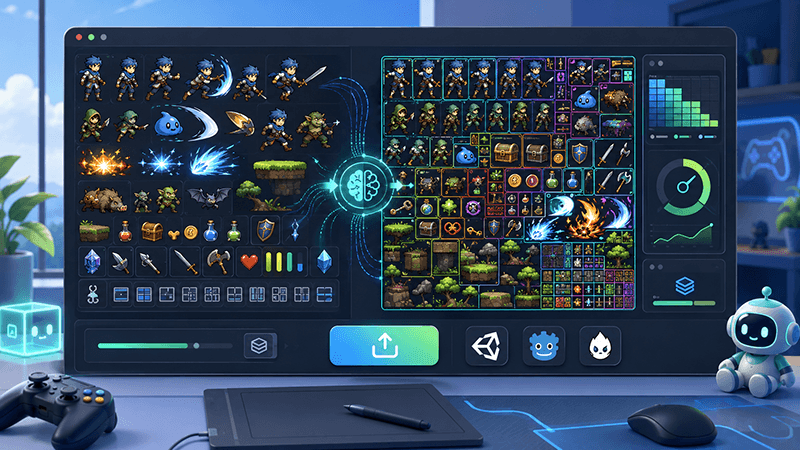
Automatic Sprite Slicing and ZIP Export: A Faster Way to Prepare 2D Game Assets
Learn how automatic sprite slicing and one-click ZIP export can help indie game developers turn character sheets, icon collections, and AI-generated 2D artwork into organized PNG assets faster.
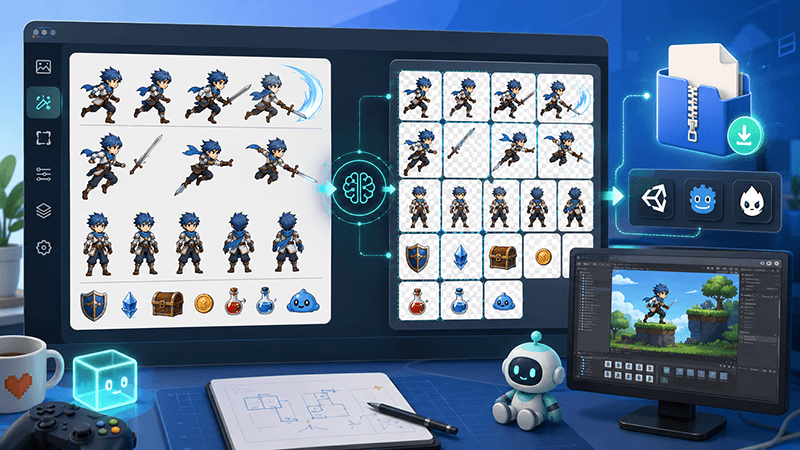
From AI Sprite Cutter to Sprite Sheet Maker: A Complete 2D Asset Workflow
A practical workflow guide for turning raw 2D images into sliced PNG files, downloading them as a ZIP package, and using those files to create sprite sheets for Unity, Cocos, Godot, and custom game engines.
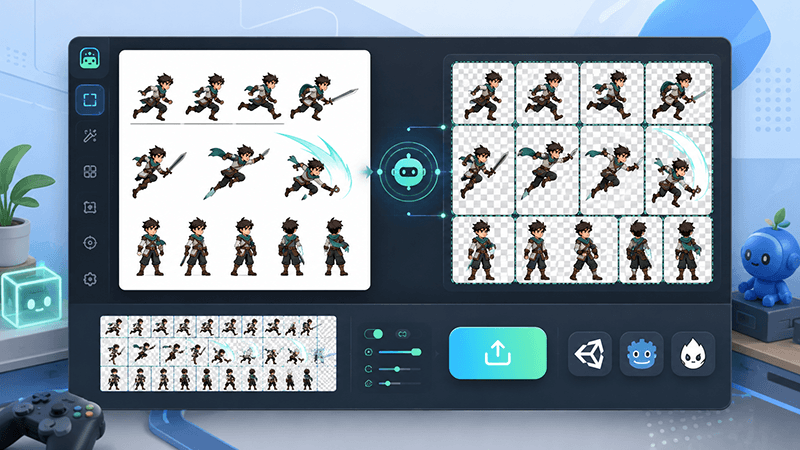
AI Sprite Cutter: How Indie Game Developers Can Split 2D Game Assets Faster
A practical guide for indie game developers, 2D artists, and prototype teams. Learn how an AI sprite cutter can split character sheets, UI icons, white-background assets, and AI-generated artwork into clean PNG files for Unity, Cocos, Godot, and sprite sheet workflows.
Ready to try "How to Split a Sprite Sheet into Individual PNG Frames Online"?
Use our online tools to apply this tutorial to your indie game project right away.