
How to Compress Game Images Without Color Shift, Halo Artifacts, or Broken Alpha
Game UI, sprites, and VFX are unusually sensitive to compression. Learn how to reduce image size while protecting exact colors, transparent edges, glows, gradients, and small high-contrast details.
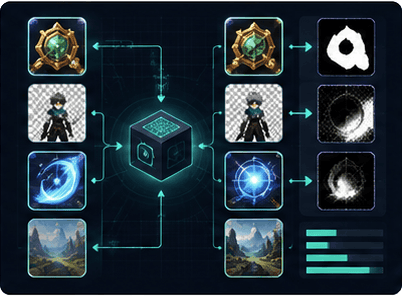
How to Compress Game Images Without Color Shift, Halo Artifacts, or Broken Alpha
Image compression for a game is not the same as compressing an ordinary website photo. A background illustration may tolerate small texture changes, while a one-pixel UI border, a transparent character outline, or a soft attack glow may show obvious damage immediately.
The right goal is not “maximum percentage saved.” It is the smallest file that stays inside the visual tolerance of that asset type. Tooliva's Resource Compression module is designed around this quality-first workflow.
Why game images reveal compression artifacts so easily
Game assets frequently contain:
- flat saturated colors
- sharp UI geometry
- thin outlines
- small icons
- transparent antialiased edges
- glows and semi-transparent effects
- smooth gradients
- pixel-art patterns
These features make visual errors much easier to notice than in photographs.
Four failure modes to protect against
1. Color shift
A vivid green label or red icon may change hue after an aggressive conversion or quantization pass. For UI assets, even a small shift can break the consistency of the entire interface.
2. Halo artifacts
Transparent images may look correct on a checkerboard but show a white, black, or colored fringe when rendered over the actual game background. This usually comes from edge RGB contamination, Alpha handling, or texture filtering.
3. Gradient banding
Soft backgrounds and glows can become separated into visible bands when too few color levels remain. This is especially noticeable in dark scenes.
4. Block or ringing artifacts
Lossy compression can introduce blocks or ripples around high-contrast edges. Small icons and text-like UI shapes expose these artifacts quickly.
Do not use one compression rule for every asset
| Asset | Main risk | Priority |
|---|---|---|
| UI icon | Edge distortion and color shift | Sharpness and exact color |
| Character sprite | Broken Alpha edge | Silhouette and transparency |
| VFX | Destroyed soft glow | Semi-transparent gradients |
| Background | Large file size | Perceptual quality per byte |
| Pixel art | Palette contamination | Exact pixels and nearest filtering |
A quality-first compression workflow
Step 1: Keep the original master
Never overwrite the production source. Compression should create a delivery derivative. The uncompressed master is needed when the target format, platform, or quality threshold changes later.
Step 2: Detect the visual risk of the asset
Before selecting a codec or quality, classify the image. Does it have Alpha? Is it mostly a flat UI graphic? Is it a large opaque background? Does it contain glow? Different categories should start from different strategies.
Step 3: Search for the quality threshold
Instead of choosing a fixed low quality for every file, progressively test smaller outputs until the visual difference exceeds the acceptable threshold. The useful point is the last version that still passes inspection.
Step 4: Validate color
Compare saturated colors and brand-like UI colors directly. If a green title becomes yellow-green or a red button shifts toward orange, the file may be smaller but the asset is no longer equivalent.
Step 5: Validate Alpha on multiple backgrounds
Transparent assets should be previewed on:
- dark background
- light background
- high-saturation background
- the real scene where possible
This exposes edge colors that remain invisible on a transparency checkerboard.
Step 6: Inspect glows and gradients
Soft effects should be checked at normal size and 100 percent zoom. Look for sudden brightness steps, block boundaries, or a hard outer edge that was not present in the master.
Why “66% smaller” is not automatically better than “11% smaller”
Compression ratios are meaningful only when the visual result is comparable. A tool can produce a dramatic reduction by accepting more distortion, removing color information, or altering semi-transparent pixels. For game production, a smaller file that changes a green UI element or creates obvious glow blocks is a failed output.
The correct benchmark has two dimensions:
- size reduction
- visual constraint pass/fail
Only outputs that pass the visual constraints should be compared by size.
PNG, WebP, and AVIF are not interchangeable
Different formats have different strengths, decode costs, platform support, and Alpha behavior. A later article in this series compares them by game asset type. The important rule here is to choose the codec after understanding the asset, not before.
Engine-side validation still matters
Even a visually correct source image can show edge problems after import if the engine changes filtering, generates mipmaps, applies texture compression, or expects premultiplied Alpha. Always test the actual imported texture.
If the compressed image belongs to a character animation, check it in motion as well. Small edge inconsistencies can flicker between frames even when each frame looks acceptable by itself.
Common mistakes
- Judging quality only from file size.
- Checking transparent images only on a checkerboard.
- Applying photographic compression settings to pixel art.
- Allowing a codec conversion to change important UI colors.
- Ignoring animation-to-animation consistency.
- Recompressing an already lossy image multiple times.
FAQ
Why are game assets harder to compress than ordinary web images?
They contain sharp geometry, Alpha edges, exact colors, glows, and small details that make compression artifacts much more visible.
Why can a transparent PNG develop a dark or light halo after compression?
Hidden RGB values around transparent pixels can become visible through filtering or incompatible Alpha handling.
Should every image use the same compression quality?
No. Set thresholds by asset type and by the kind of visual error that matters most.
How should compression quality be validated?
Inspect color, edges, gradients, Alpha on multiple backgrounds, and the final imported texture in the real runtime.
Conclusion
The best compression result is not the smallest file. It is the smallest file that still behaves like the original asset. Use Resource Compression as part of a quality-controlled delivery pipeline, and keep the master source untouched for future platforms and revisions.
FAQ
Why are game assets harder to compress than ordinary web images?
Game assets often contain hard UI edges, transparent pixels, small text-like shapes, glow layers, gradients, and exact palette colors that make artifacts more visible.
Why can a transparent PNG develop a dark or light halo after compression?
The RGB values of transparent edge pixels may be altered or sampled incorrectly. Texture filtering and premultiplied Alpha settings can make those hidden colors visible.
Should every image use the same compression quality?
No. UI icons, VFX, character sprites, backgrounds, and promotional images have different visual failure modes and should use asset-specific thresholds.
How should compression quality be validated?
Compare the result at 100 percent zoom, inspect Alpha edges over dark and light backgrounds, check gradients, and test the actual texture in the target engine or browser.
Ready to try "How to Compress Game Images Without Color Shift, Halo Artifacts, or Broken Alpha"?
Use our online tools to apply this tutorial to your indie game project right away.